 FixVolumeLevel
The problem it solves
Two things go wrong with recorded sound all the time. Either the whole recording came out too quiet, or the speaker kept leaning away from the mic and you spent the whole video riding the volume knob.
FixVolumeLevel handles both. The first needs a simple turn-it-up. The second needs something smarter: raise the quiet stretches without making the loud ones blast.
How it works
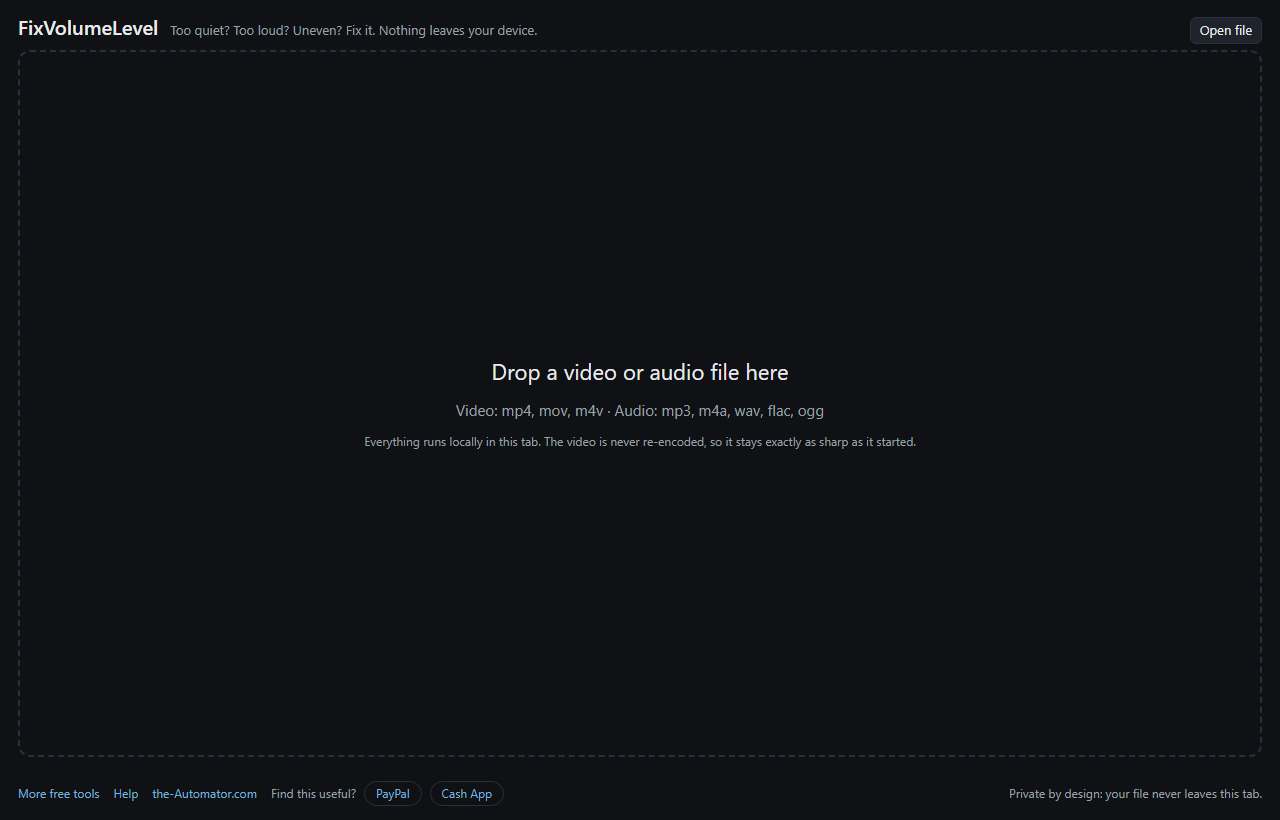
- Open a file. Click Open file and pick a video or an audio recording.
- Set the level. Drag the volume slider while it plays and listen. Reset puts it back to 0 dB.
- Even it out, if you need to. Tick Boost the quiet parts when some sections are much quieter than others.
- Click Save fixed file. A video comes back as an MP4 and an audio file as an MP3.
What "Boost the quiet parts" actually does
Think of a helper with their hand on the volume knob. When the speaker drifts away from the mic, they turn it up. When the speaker comes back, they ease off.
It measures your own file first and uses its loud parts as the target, then raises the quiet stretches toward that level. Parts that are already loud enough are left alone. Very quiet background noise is treated as noise, not speech, so it is not cranked up to match.
A limiter is always on underneath. Whatever you do with the slider or the checkbox, the peaks are held down so the sound doesn't crackle or distort.
Your picture is left alone
Most tools that change the volume of a video rebuild the whole thing, picture and all, and each rebuild softens it a little. FixVolumeLevel only rebuilds the sound. The video frames are copied straight across, so the result is exactly as sharp as what you put in.
Why I ask for your email
It tells me who is actually using the tool, which helps me decide what to keep building.
Your recording never leaves your computer. FixVolumeLevel reads, processes and saves the file inside your browser. Nothing is uploaded and nothing is stored on a server.
I might send you a note now and then about other free tools I build. I will never sell or give your email to anyone else.
Questions people ask
Is it free?
Yes. Sign up once with your first name and email and fix as many files as you like.
What files can I use?
Videos in H.264, which covers most MP4 and MOV files, plus common audio like MP3, M4A, WAV, FLAC, OGG and Opus. The video needs a sound track, of course.
My iPhone video won't open. Why?
Newer iPhones often record in HEVC (H.265), which doesn't play reliably everywhere, so the tool turns it away with a plain message. On the iPhone, Settings, Camera, Formats, Most Compatible records H.264 instead.
Is there a size limit?
Yes, 500 MB. Bigger files are too much for a browser tab to handle reliably, so try a shorter clip.
Which browser should I use?
Chrome or Edge on a computer. Those are the ones I've tested it in.
Does it handle files with more than one audio track?
Only the first audio track is processed.